HTML is the World Wide Web’s core markup language. Originally, HTML was primarily designed as a language for semantically describing scientific documents. Its general design, however, has enabled it to be adapted, over the subsequent years, to describe a number of other types of documents and even applications.
HTML (HyperText Markup Language) is the most basic building block of the Web. It defines the meaning and structure of web content. Other technologies besides HTML are generally used to describe a web page's appearance/presentation (CSS) or functionality/behavior (JavaScript).
"Hypertext" refers to links that connect web pages to one another, either within a single website or between websites. Links are a fundamental aspect of the Web. By uploading content to the Internet and linking it to pages created by other people, you become an active participant in the World Wide Web.
HTML uses "markup" to annotate text, images, and other content for display in a Web browser. HTML uses html tags to markup elements. Some of them includes <head>, <h1>,<p>, <footer> and so on.
HTML Document Structure
Basic Structure Of HTML Document
A basic HTML document looks like this:
        <!DOCTYPE html>
        <html>
        <head>
          <title>Sample page</title>
        </head>
        <body>
         <h1>Sample page</h1>
         <p>This is a <a href="demo.html">simple</a> sample.</p>
         <!-- this is a comment -->
        </body>
        </html>
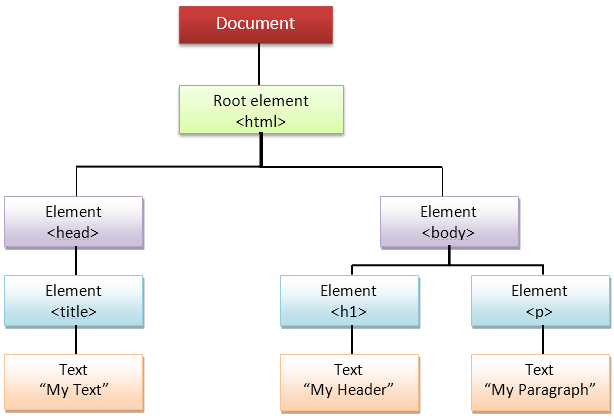
HTML documents consist of a tree of elements and text. Each element is denoted in the source by a start tag, such as <body>, and an end tag, such as </body>. Certain start tags and end tags can in certain cases be omitted and are implied by other tags.
Elements can have attributes, which control how the elements work. In the example below, there is a hyperlink, formed using the <a> element and its href attribute:
<a href="demo.html">simple</a>
Document Object Model (DOM)
HTML user agents (e.g., Web browsers) then parse this markup, turning it into a DOM (Document Object Model) tree. A DOM tree is an in-memory representation of a document.
When a web page is done loaded, the browser creates a Document Object Model of the Page. The html DOM model is constructed as a tree of objects
Html DOM in Action
HTML Tags
Html tags are used for marking up a web page
There are two types of html tags
Paired and Unpaired Tags
Self Closing tags
Paired Tags
An HTML tag is known as a paired tag when the tag consists of an opening tag and a closing tag as its companion tag. An HTML Paired tag starts with an opening tag, which is the tag name enclosed inside the angle brackets, for example, a paragraph opening tag is written as ‘<p>’. The content follows the opening tag which ends with an ending tag, which is the tag name starting with a forward slash, for example, an ending paragraph tag is written as ‘</p>’. So the first tag can be referred to as the ‘Opening Tag’ and the second tag can be called 'Closing Tag'.
Example:<p>This text is a paragraph.</p>
Unpaired Tags
An HTML tag is called an unpaired tag when the tag only has an opening tag and does not have a closing tag or a companion tag. The Unpaired HTML tag does not require a closing tag, an opening tag is sufficient in this type. Unpaired tags are sometimes also named as Standalone Tags or Singular Tags since they do not require a companion tag. These tags are also called Empty Tag.
Example <br>,<hr>
<hr> as an unpaired tag
    <p> This is a paragraph </p>
    <hr>
    <p> This is another paragraph </p>
Self Closing Tags
Self-Closing Tags are those HTML tags that do not have a partner tag, where the first tag is the only necessary tag that is valid for the formatting. The main and important information is contained WITHIN the element as its attribute. An image tag is the classic example of a self-closing tag. E.g <img>, <input>
Self Closing Tags in Action<img src="a.jpg" alt="This is an alternate text"/>
Block and Inline Elements
Every HTML element has a default display value, depending on what type of element it is.
Block-level Elements
Inline Element
Block-level Elements
A block-level element always starts on a new line and takes up the full width available (stretches out to the left and right as far as it can).
Some types of block elements are: <article>, <div>, <blockquote>, <p> e.t.c
Example <div>Hello World </div>
Inline Elements
An inline element does not start on a new line and it only takes up as much width as necessary. Inline elements can be contained in a block level element
Example<p>Hello<span>World</span><p>
Here are inline elements in HTML: <a>, <abbr>,<br>,<code>,<button>etc
The <div> element is a block-level and is often used as a container for other HTML elements
The <span> element is an inline container used to mark up a part of a text, or a part of a document
HTML Forms
An HTML form is used to collect user input. The user input is most often sent to a server for processing.
The HTML <form> element is used to create an HTML form for user input:
    <form>
    form elements
    </form>
The <form> element is a container for different types of input elements, such as: text fields, checkboxes, radio buttons, submit buttons, etc.
HTML Form Elements
The <input>Element:
An <input> element can be displayed in many ways, depending on the type attribute.
The <label> Element:
The <label> tag defines a label for many form elements.
Here are some examples:
Type
Description
<input type="text">
Displays a single-line text input field
<input type="radio">
Displays a radio button (for selecting one of many choices)
<input type="checkbox">
Displays a checkbox (for selecting zero or more of many choices)
<input type="submit">
Displays a submit button (for submitting the form)
This is how the HTML code above will be displayed in a browser:
HTML Tables
HTML tables allow web developers to arrange data into rows and columns.
HTML Tables Elements
The <table> tag defines an HTML table.
Each table row is defined with a <tr> tag. Each table header is defined with a <th> tag. Each table data/cell is defined with a <td> tag.
By default, the text in <th> elements are bold and centered.
By default, the text in <td> elements are regular and left-aligned.
Semantic HTML tags gives structure and meaning to a web page. It helps in making the web page accessible to everyone
Semantic HTML
When a screen reader, or any sort of assistive device scans a web page, it gets information about the Document Object Model (DOM), or the HTML structure of the page.
HTML5 introduced several new semantic elements representing logical sections or components of a web page. None of the new elements actually “do” anything by themselves, but they provide a nice way for web authors to define various parts of a document, and open the door for user agents and assistive technologies to use this information to enable alternate ways of viewing and navigating a web page.
When we write semantically correct HTML, we’re letting the browser know what type of content it’s dealing with and how that content relates to other content. By doing this, assistive technology is more easily able to do its job because it has a structure that it can work with
Types of Semantic Elements
Headings <h1>,<h2>,<h3>,<h4>,<h5><h6>
<header>
<main>
<nav>
<footer>
<article>
<section>
Using these semantic tags in your documents helps adds structure to your web page and it makes your easy to navigate through
Making the web accessible does not also stops at using semantic elements on your page. It also involve making sure that the correct Hypertext Markup Language elements are used for the correct purpose at all times
Best Practices for Accessibilty
Use Container Elements for Layout Only: Elements like <div> and <span> are for layout only. They are semantically meaningless, they don’t have keyboard or touch support in any browser, and they don’t communicate anything to the accessibility API.
Use Semantic HTML elements to structure every page:
Use an excellent content structure with headings,paragraph,lists etc
Use clear language that is not complex and does not contain jargon. Avoid using characters that do not get read aloud clearly by the screen reader.
Never Create page layouts with html tables.
A correct and semantically marked up page should look like this
<header>
<h1> Heading </h1>
<nav>
<!-- main navigation in here -->
</nav>
</header>
<main>
<!-- Here is our page's main content -->
<!-- It contains an article -->
<article>
<h2>Article heading</h2>
<!-- article content in here -->
</article>
</main>
<aside>
<h2>Related</h2>
<!-- aside content in here -->
</aside>
<!-- And here is our main footer that is used across all the pages of our website -->
<footer>
<!-- footer content in here -->
</footer>